
SUMMARY
This article explains two alternative methods that can be used to test the performance of Nuke nodes when trying to identify the cause of script slowdowns.
MORE INFORMATION
Trying to determine which parts of a Nuke script are slowing down your playback/render times can be difficult. To facilitate this process, Nuke provides two alternative methods to profile the performance of nodes in your script, Performance Timers and the Profile node.
Both methods will provide analytics that can be used to isolate particularly slow nodes and help you optimize your workflow. The notable difference between these methods is that the Profile node reports performance using percent-based analytics rather than the timer-based analytics of the Performance Timers.
Using Performance Timers:
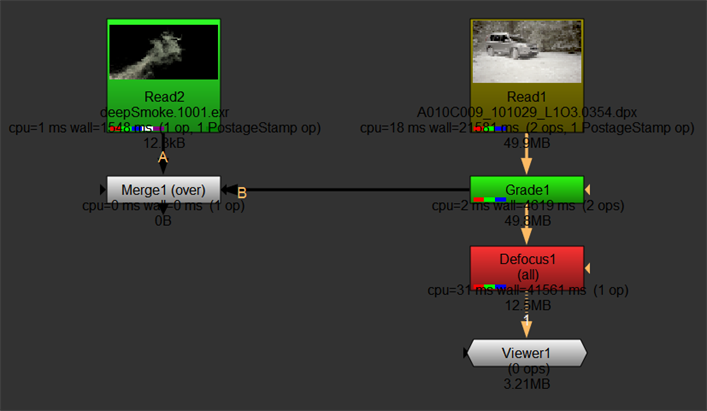
Performance Timers mode will allow you to see the analytics of each node and various metrics on the node. When profiled, nodes with be given a color-coded gradient from green to red, where red indicates a slow node.
You can see from the example below that Defocus is a slow node, whereas the Merge is doing no work at all:
Launching Nuke with Performance Timers enabled:
To run Nuke with Performance Timers enabled, the -P flag should be included when launching Nuke. Instructions on how to do this can be found below for each operating system:
These instructions are based on having Nuke installed in the default location. If this is not the case then the commands will need to be modified accordingly to run from your custom installation location.
Windows
Open a Command Prompt window and run the following command:
"C:\Program Files\Nuke17.1v1\Nuke17.1.exe" -PmacOS
Open a Terminal window and run the following command:
/Applications/Nuke17.1v1/Nuke17.1v1.app/Contents/MacOS/Nuke17.1 -PLinux
Open a Terminal and run the following command:
/usr/local/Nuke17.1v1/Nuke17.1 -PWhen Nuke is launched with Performance Timers enabled, you can reset, start and stop the timers in the Performance menu in the UI, as shown below:
Performance Timers via Python:
In any Nuke session, you can start, stop, or reset the Performance Timers by running the corresponding command in the Script Editor:
nuke.startPerformanceTimers()nuke.stopPerformanceTimers()nuke.resetPerformanceTimers()More information about these commands can be found in our Python Developer's Guide
Information reported while using Performance Timers:
When Performance Timers are enabled, each node will report the following information:
| cpu |
This is the time the CPU spent executing the processing code, aggregated over all CPU threads and measured in microseconds. If the CPU time is much shorter than the wall time, this suggests that the CPU threads have spent a lot of time not executing code - for example, waiting on locks - and could indicate a performance problem. On Windows, the CPU time is not currently available and this value will be similar to the wall time. |
|---|---|
| wall | The sum of the time taken from each thread, as it would be measured by a clock on the wall. This time is measured in microseconds. |
| ops |
The number of operators called in the node. Operators are Nuke's building blocks that perform certain tasks. Nodes can contain one or more ops. For example, when a node needs to resize something it would use a Transform op rather than an implementation of its own to do the same thing. |
| memory | The total amount of system memory used by the node. |
Using the Profile node:
The Profile node was added in Nuke 11.1 and allows users to calculate the metrics of a node graph at the point the Profile node is placed.
In the Properties of the Profile node, you can press open profile panel to access the controls for profiling your Nuke script:
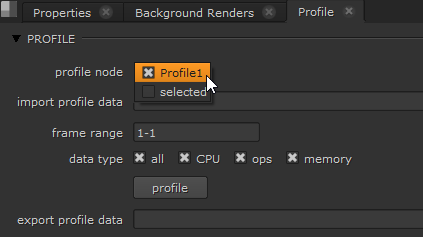
To profile the Nuke script, connect the Profile node to the part of the script you want to profile, enter the selected frame range and data type then click profile.
Once the data is collected, the Profile panel will show the results in a chart based upon percentage use, shown below:
More information on filtering this data can be found in the Filtering Profile Data documentation.
FURTHER READING
More information regarding these methods can be found respectively within either the Performance Profiling or Profile node documentation.
We're sorry to hear that
Please tell us why